This is an old revision of the document!
Semplice Version 2.13 Released
 A little later than intended, but I've just released the new Version 2.13 of Semplice. It's quite a substantial release: the new graphical look and feel is perhaps the most obvious one, along with the ability to set the colours for the individual display elements of the program interface. Under the hood, some fairly significant bugs got squashed, too, however: the biggest ones are mostly to do with making Semplice a first-class citizen on a macOS installation. In particular, macOS's handling of Unicode characters that involve accents is, er… “unpredictable” and the new version of Semplice brings some order to the chaos! Full details, as always, are available from the Semplice Changelog.
This update is, unfortunately a 'breaking update', meaning that simply taking the Administration menu, Option 3 will certainly upgrade to the latest Semplice release, but it will look like a disaster when you're done and some important things will be missing (which won't be missing if you were doing a fresh install, by the way).
So, to ensure the unpleasantness is kept to a minimum, you need to do a bit more than just taking that 'check for program updates' menu option. The first thing you need to do (again, only if you're upgrading an existing Semplice installation) is to install some extra packages which are new dependencies that Semplice now has and didn't before:
- Fedora: sudo dnf install libsixel libsixel-utils kitty
- Mint: sudo apt install libsixel-bin kitty
- AlmaLinux10: sudo dnf install kitty
- Suse: sudo zypper install libsixel1 libsixel-utils kitty
- Arch: sudo pacman -S kitty libsixel
- Debian/Raspbian: sudo apt install libsixel-bin kitty
- Ubuntu: sudo apt install libsixel-bin kitty
Once that new software is installed, you can proceed to do the standard Semplice upgrade procedure (i.e., take the Administration menu, Option 3 and supply the sudo password when prompted). The upgrade will appear to fail:
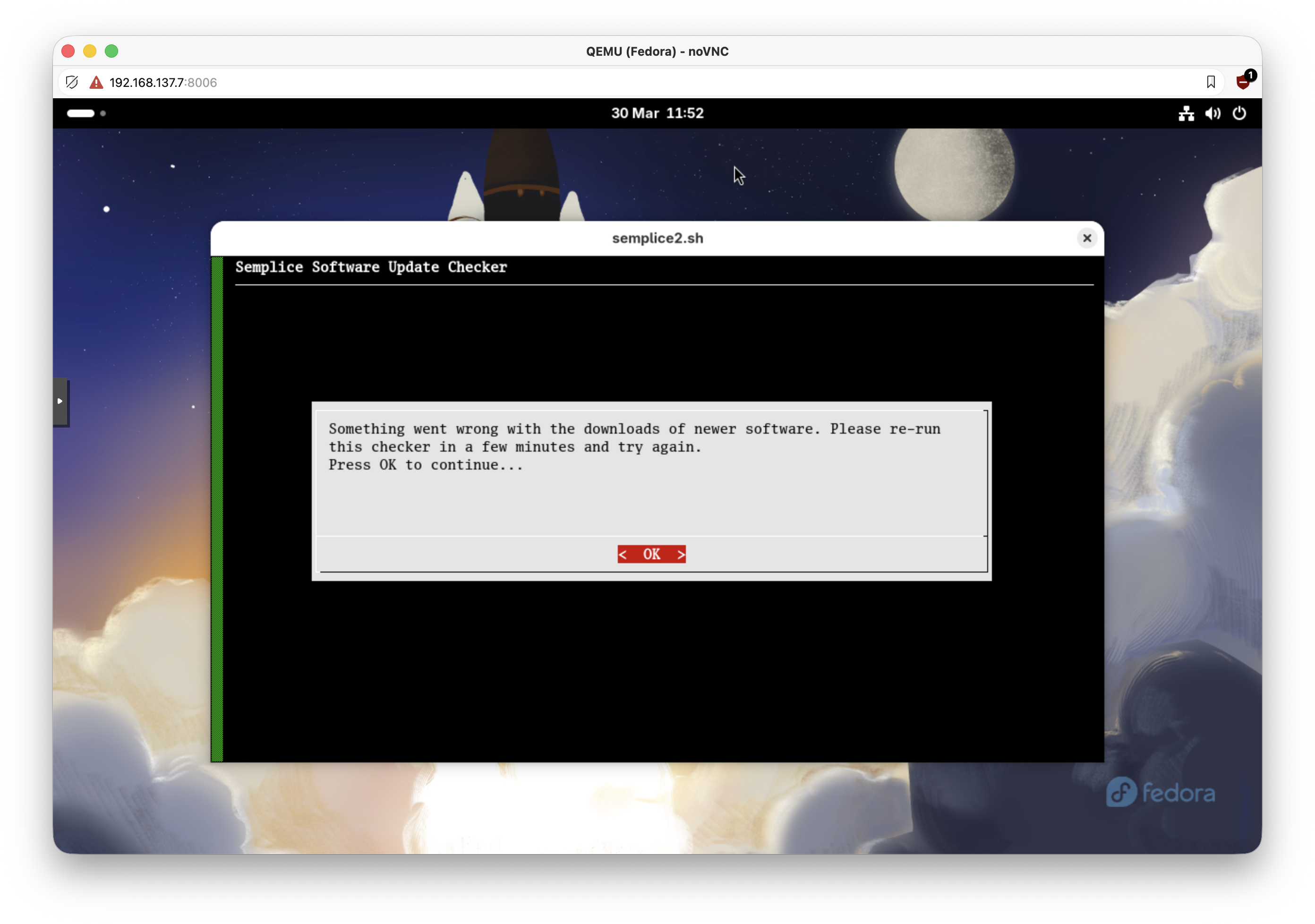
Don't worry about that: just press [Enter] or click OK to accept the message: you'll be returned to the main program screen, which will look ghastly:
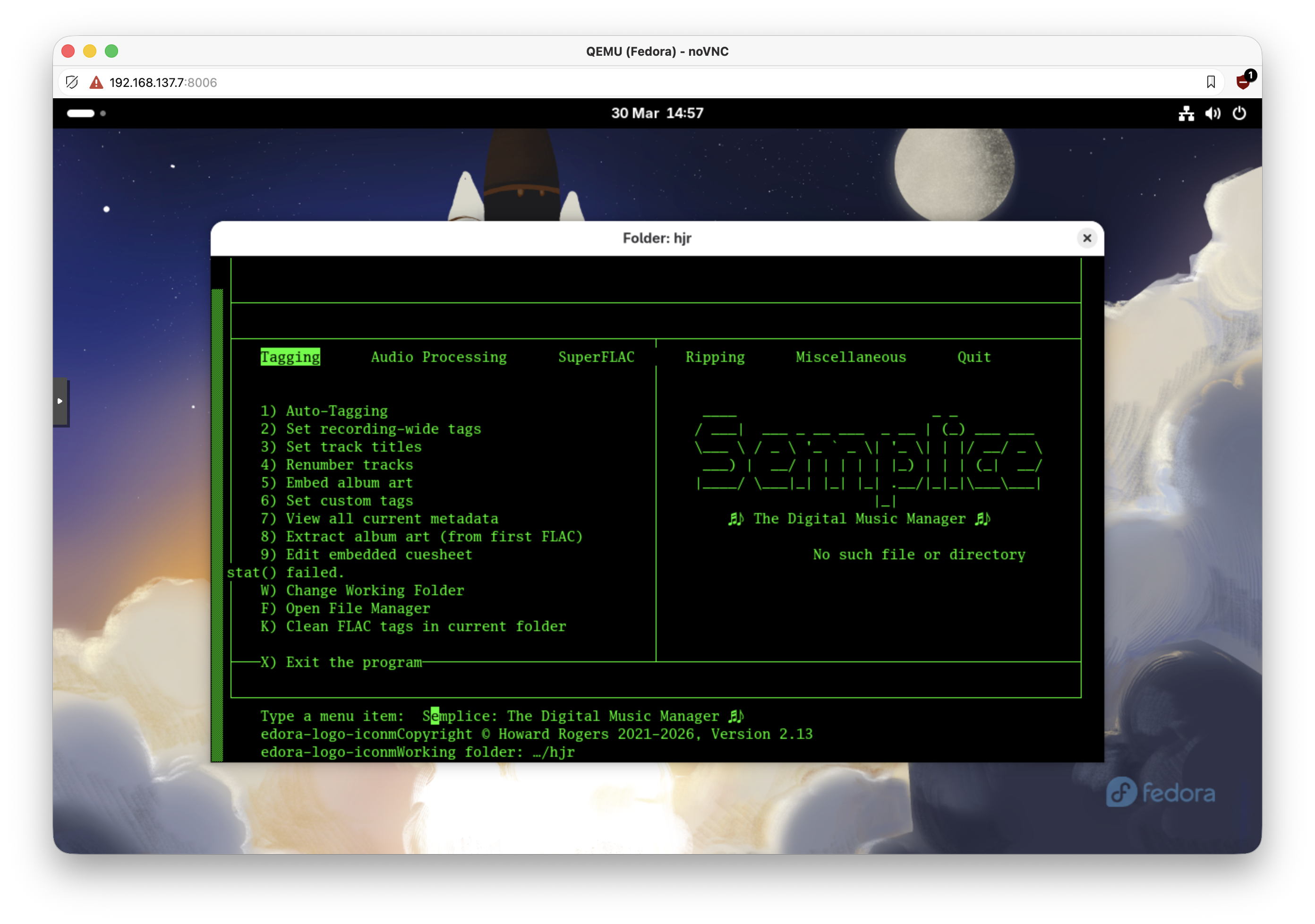
Don't worry about this, either. Just take the Miscellaneous menu option once more, Option 1 to edit the configuration file and then keep pressing [Enter] to step through every page of options without changing anything. When you press [Enter] on the last page of the configuration options, you'll return to the main program menu and see this:
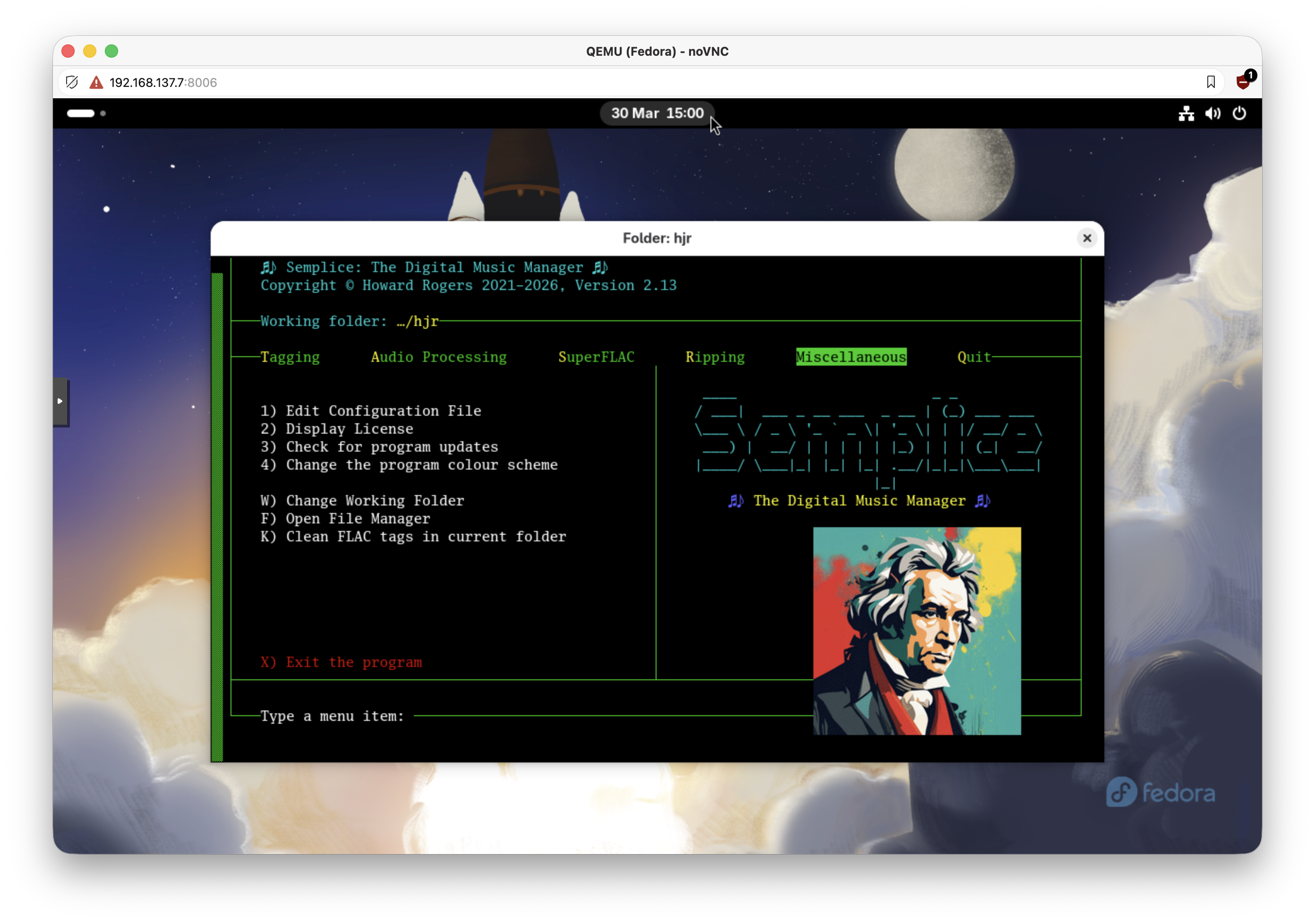
At this point, the only real problem remaining is the size of the 'grumpy Beethoven' logo, over on the right of the program display: go back into the Edit Configuration File option once more. On the last page, you'll find a set of four new configuration options:
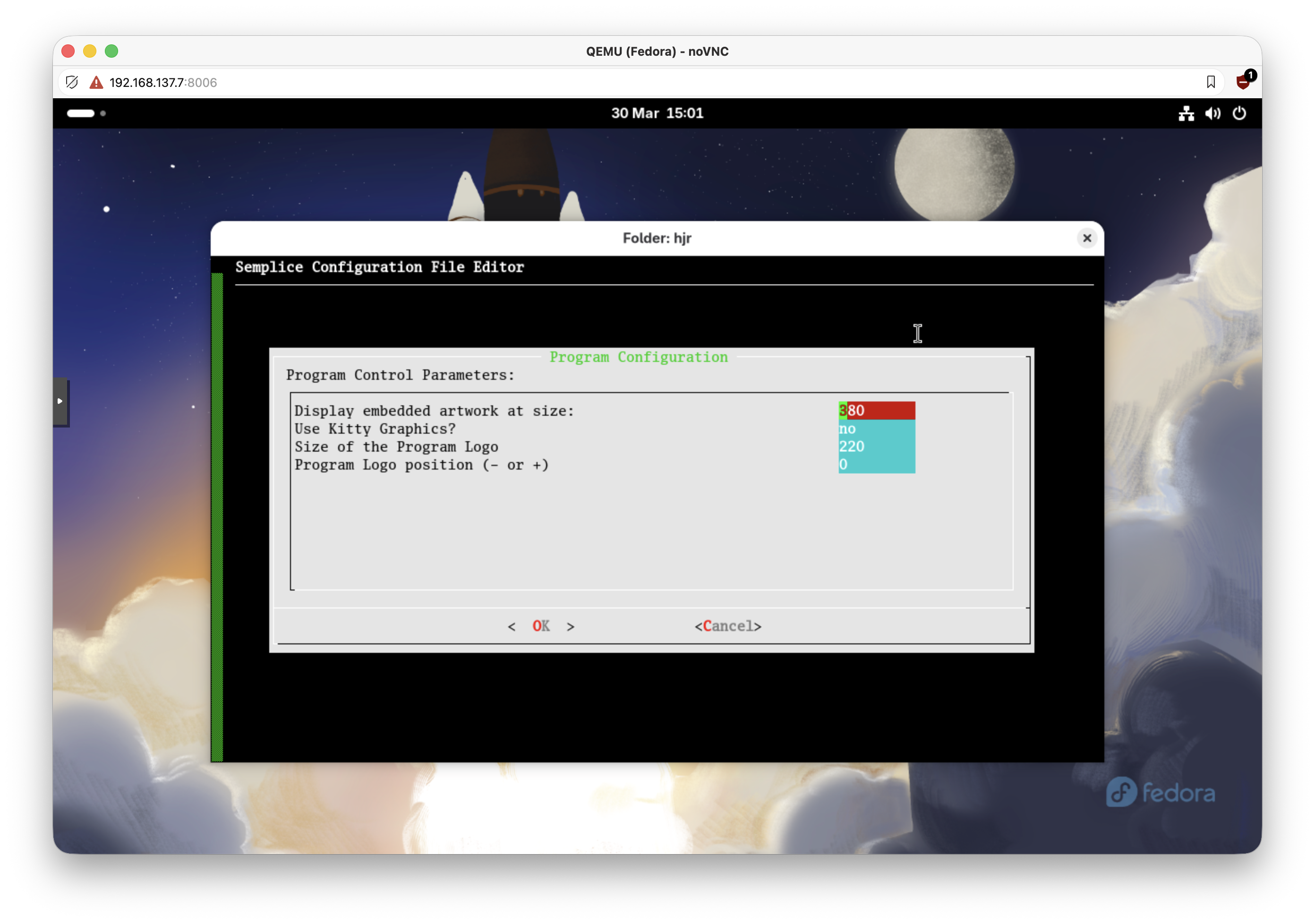
Set the “size of the program logo” to something smaller or larger, depending on how things are appearing on your screen. Use the “program logo position” parameter to supply a negative (move left) or positive (move right) number to adjust the precise position of the logo. For my Fedora installation, I found a size of 110 and a position of 0 worked fine, but your mileage might vary:
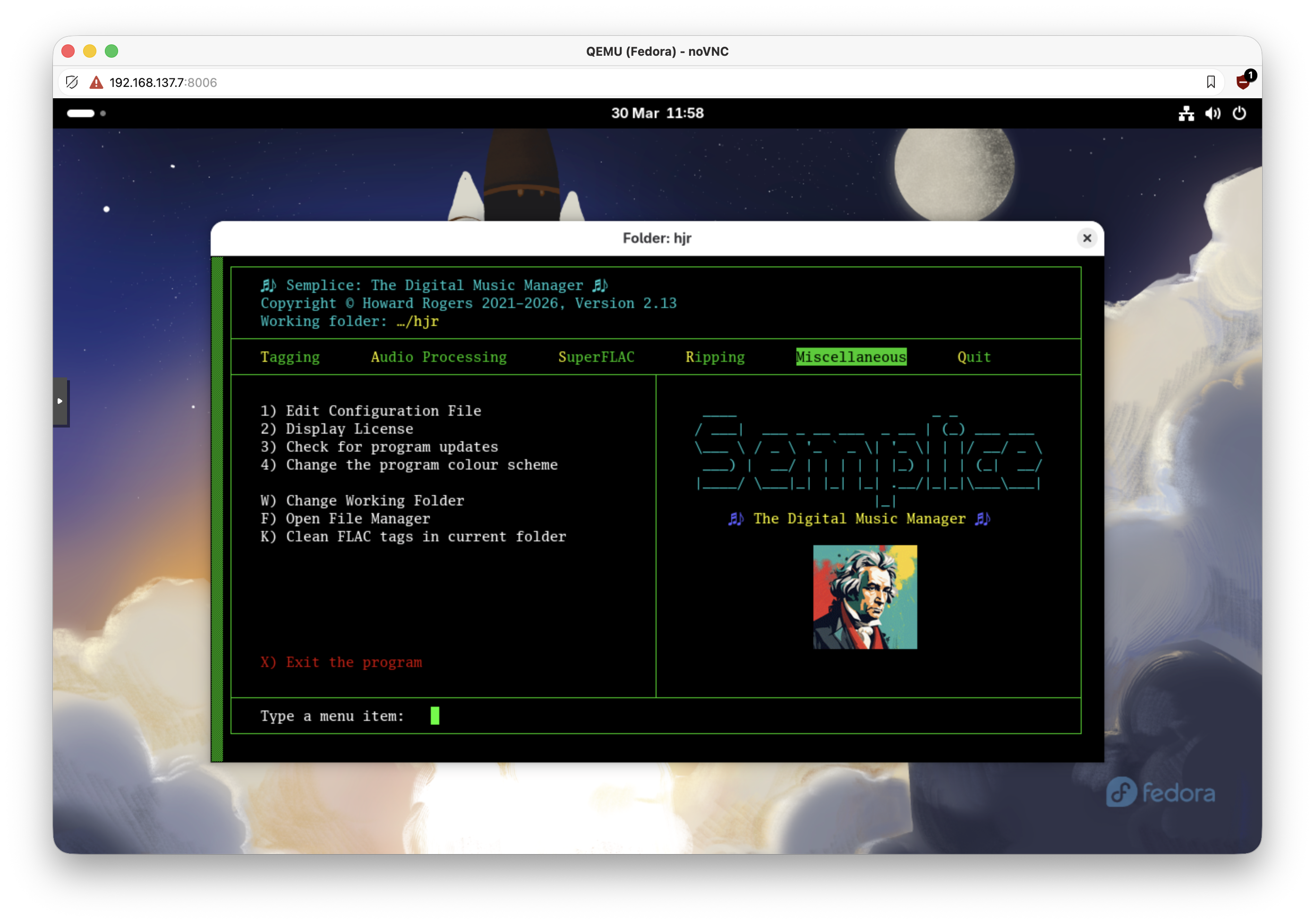
Once the display looks fine, your upgrade is complete. I apologise for the fact that this upgrade is non-trivial and requires a bit of manual intervention on your part beforehand: I try to keep these 'breaking updates' to a minimum and I hope this will be the last one for a good long while!
Finally, note that on AlmaLinux, the terminal type that the Semplice launcher runs Semplice in cannot display graphics: that's why these instructions mentioned installing the Kitty terminal, which can display those graphics. It is accordingly recommended that you use the Kitty terminal for all Semplice operations on that platform in future. If you want to adjust the program launcher so that it invokes Kitty automatically, you'll need to edit the appropriate launcher file. That's located in $HOME/.local/share/applications/semplice.desktop. So:
nano $HOME/.local/share/applications/semplice.desktop
Change the “Exec” line of the file. At the moment, it's reading something like:
Exec=/usr/bin/xterm -xrm 'xterm*iconHint: /home/hjr/.local/share/semplice2/art/sempliceico.xpm' -bg black -fg green -geometry 103x28 -fa 'Luxi Mono:style=Regular' -fs 11 -ti 340 -tn xterm-256color -e semplice2.sh
Change that to read (rather more simply!):
Exec=/usr/bin/kitty -e semplice2.sh
You may also want to configure Kitty generally to display things in a nicer fashion than it does by default. That's done by editing the $HOME/.config/kitty/kitty.conf file. My own is very, very simple:
font_family      family='Luxi Mono' postscript_name=LuxiMono
font_size 12.0
…but many more configuration options are available to anyone with time to invest in such things!